

Guide for instructors
Build the curriculum, approve lesson plans, put classes on the timetable, and follow every session and learner.
Who this guide is for
You prepare what is taught. You build subjects and topics, approve the lesson plans the AI teacher follows, set up classes and their timetables, and read what happened in each session. Owners and admins can do all of this too.
Before you start
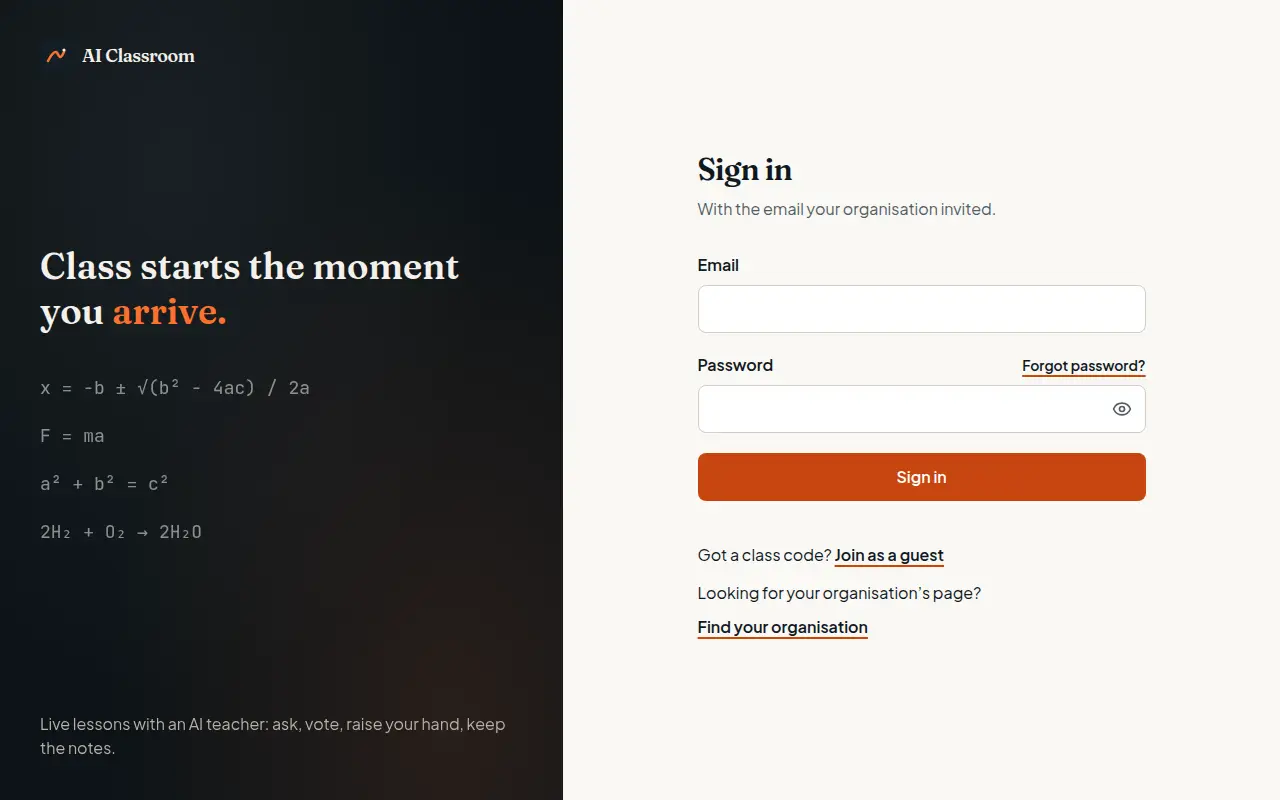
Open your organisation's address and add
/app/console— or select Staff sign-in at the foot of its public page.Sign in with Continue with Schoolex, or with the email and password from your invitation.
Build the curriculum
Open Curriculum. It is organised as subjects, then topics, then lesson plans — and the AI teacher only teaches approved plans.
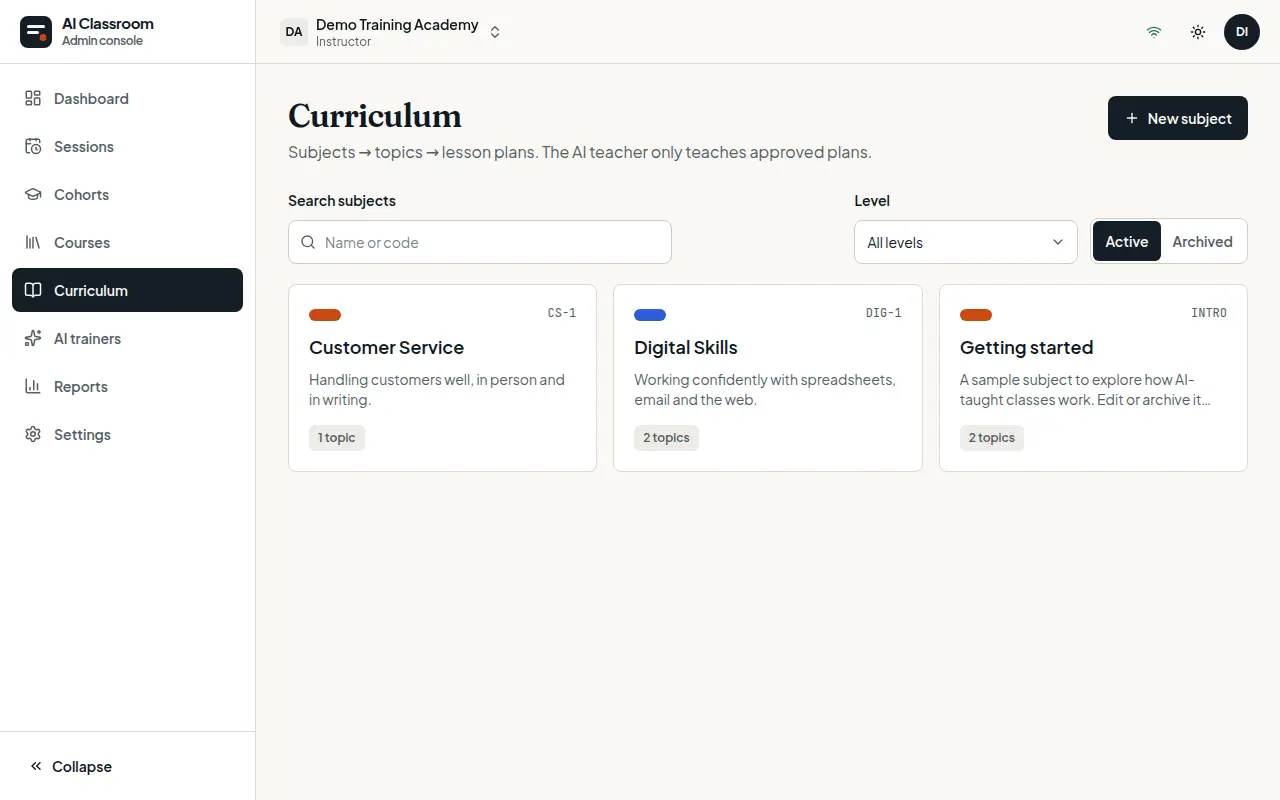
Select New subject and give it a name, a code, a level and a colour.
Open the subject and select New topic for each topic you will teach.
Open a topic and upload your Material — notes, slides or a textbook chapter. Lesson plans are drafted from it.
Select New lesson plan. Choose whether the teacher keeps to Only this material or uses Material plus general knowledge, then let the AI draft the sections, or write them yourself.
Read every section. Change what you need, then select Save draft or Save and approve.
Choose an AI teacher
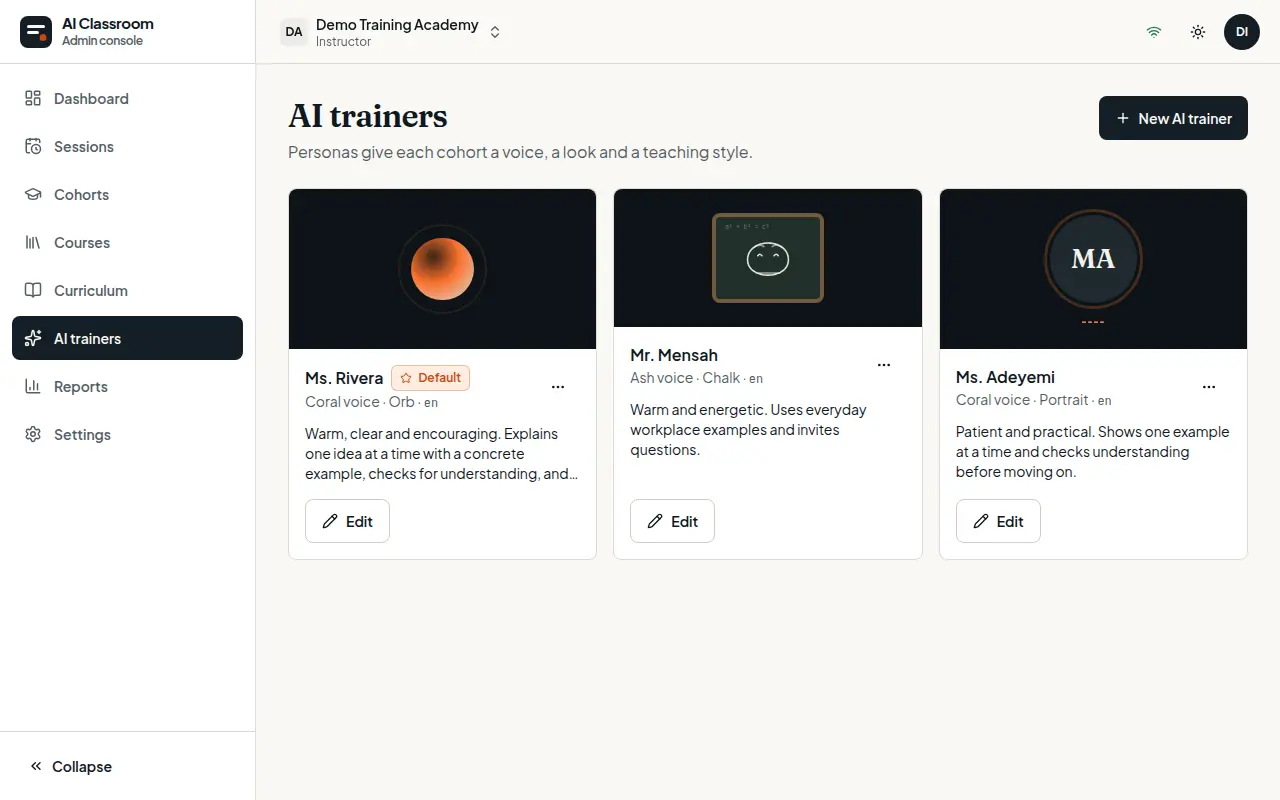
Open the list of AI teachers (AI trainers in a training organisation). Each one has a name, a voice, a look and a teaching style. Your organisation starts with one; select the button at the top to add more.
Set up a class
Open Classes (Cohorts in some organisations) and select the button to create one.
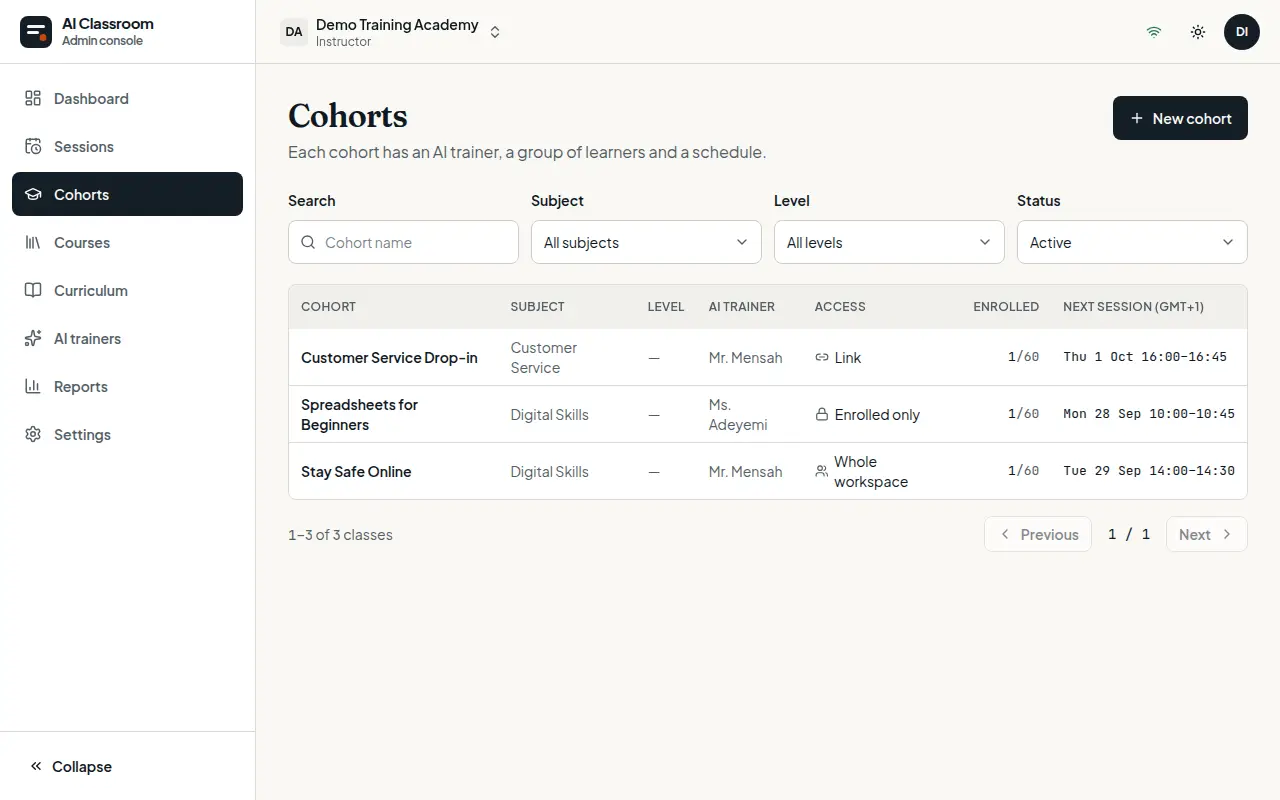
Give the class a name, a subject, a level and an AI teacher.
Under Who can join, choose Enrolled only, your organisation's learners, or Anyone with the link.
Select Add a schedule: the days, the Start time, the Length (min) and the Lesson plans, in order. Sessions are created for the next 28 days and keep being created as time goes on.
Under Enrolled participants, add the learners who belong to the class.
To show the class on your organisation's public page, turn on Publish on public page and write a short Public summary.
Classroom settings decide what participants can do in the room: the Question board (post and vote on questions), Hand raising, Photo questions, whether questions are moderated, and whether a transcript is recorded.
The timetable and live sessions
Open Sessions to see the week, or switch to the list.
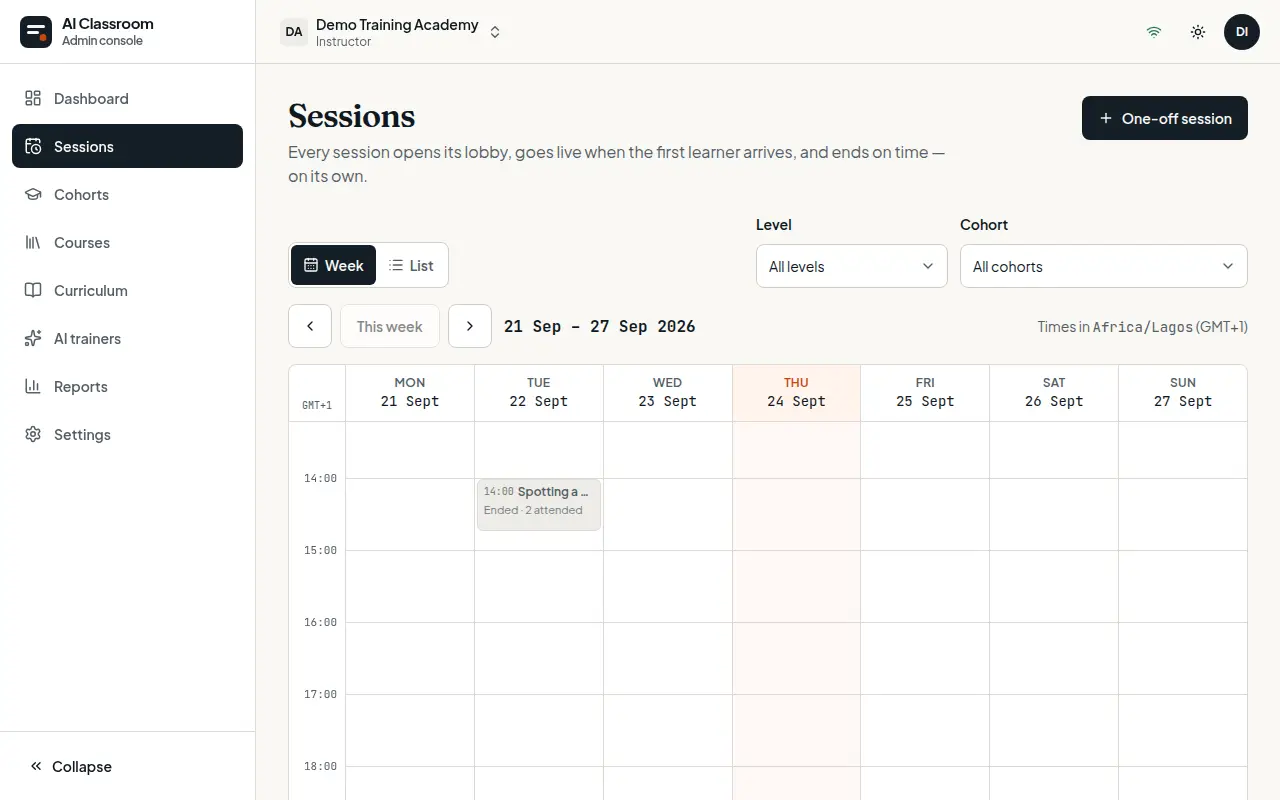
Each session runs on its own:
Its lobby opens a few minutes before the start time.
It goes live when the first participant arrives, and the AI teacher teaches the plan, paced to the slot.
Participants post questions and vote; the teacher answers the ones voted up and can hand a participant the microphone.
It ends at the end of the slot.
To add a single extra session, select One-off session. Open a live session's Live monitor to watch it: who is in the room, the questions and the transcript as it happens. You can end a session early from there.
After a session
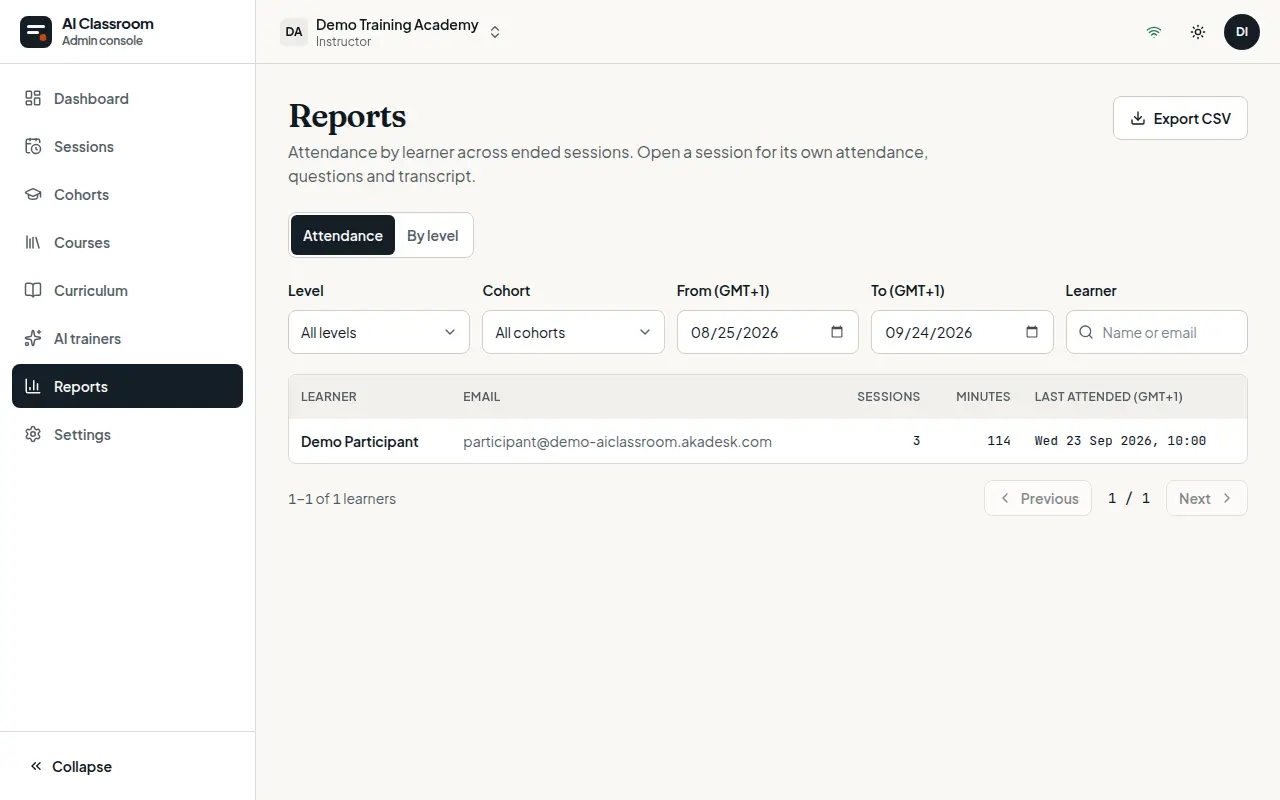
Open an ended session for its attendance, the questions asked and the full transcript. Reports shows attendance by learner across sessions, with filters by level, class and dates, and Export CSV for a spreadsheet.
Tips and common questions
The class has no sessions. Check it has a schedule, and that the schedule's lesson plans are approved.
The teacher used the wrong material. Open the plan, correct the section, and approve it again; the next session uses the new version.
A learner missed a session. They can read its transcript and notes from their History.
Getting help
Ask your organisation's owner or an admin first. For anything else, use the Schoolex contact page.
Try it yourself in the live demo.